Latest updates.
What we have built for you lately in Backstage, Ticket AI and the ticket shop.
Releases
Filter
0.96.0Backstage ·
Backstage
Your ticket price at a glance.
When you set the price of a ticket or an extra, the calculation now shows your ticket price: the base price plus your own fees. What your guests pay in the end appears right in the price field as soon as it has been worked out.
Below it, Backstage projects the whole event: the average final price, the revenue per ticket, the total contingent and the potential ticket revenue. The potential revenue is an estimate, since price levels and optional features can still move it.
Backstage
Campaigns lead to your shop.
Ads you build in Marketing AI with Future Demand now link to the event page in your own shop, if you have set up a shop domain. Whoever taps the ad lands in your look and buys there.
Without a shop domain of your own, the link still goes to the public event page.
Ticket AI
Links to your events open where they should.
When Ticket AI gives you a link to the event page in your shop or on the public site, it now opens in a new tab. Backstage and the chat stay where they are. Links into Backstage still take you straight to the right place in Backstage.
0.94.0Backstage ·
Ticket AI
Changes to live events only with your approval.
Ticket AI can not only set up events but also change them. Once an event is live, it changes nothing on its own: it shows you a card with every planned change, field by field, with the old and the new value. That covers tickets, extras, artists, vouchers, contingents and the guest list.
If a change has consequences, the card says so, for example that every guest gets an email right away or that new tickets go on sale right away. Only when you approve is anything applied. If you leave the proposal, it expires and nothing changes.
Backstage
Carousel ads in Marketing AI.
For your campaigns with Future Demand you now choose, per audience, between a single ad and a carousel. A carousel has 3 to 10 cards, each with its own image or video, headline, description and link. You change the order by dragging.
A preview shows you the carousel as it looks in the feed. Backstage warns you when an image is missing, too small, or in a format that doesn’t fit. Campaigns are unlocked per event.
0.92.0Backstage ·
Ticket AI
Answers with charts.
Ticket AI now draws charts into its answers: bars to compare, lines for how your presale is going, also against a comparison period, and bars for sold against quota. One tap switches between chart and table.
A chart only appears if every value in it matches a number from your data exactly. Otherwise you get the table.
Backstage
The buyer heatmap, enlarged.
The heatmap of your buyers, on the dashboard and in the event statistics, now opens large with one click. You see more closely which areas your guests come from, and close it again with Esc.
0.70.0Ticket shop ·
Ticket shop
Every payment method Adyen offers.
At checkout your guests now see every payment method Adyen offers for their payment, instead of a fixed list. That includes shops embedded on your own website, which until now only offered card, Apple Pay, Google Pay and PayPal.
Which methods appear depends on the currency and the country, TWINT for example, when Adyen offers it for the payment.
Ticket shop
Help for your guests.
At the foot of every event page there is now “Support”. Your guests find a form for their concern there: a ticket won’t go into the cart, the payment doesn’t work, the ticket hasn’t arrived or they would like a refund.
They pick the event and can add their order number, so the request is matched right away. The page keeps your shop’s look.
0.89.0Backstage ·
Ticket AI
Dictation that listens.
When you speak your question, Ticket AI starts recording at once and stops by itself after about two seconds of silence. A soft tone tells you when the microphone is on and when it is off again.
If Ticket AI didn’t catch anything, it says so instead of guessing. And if the window is closed while an answer finishes, you hear it.
Backstage
When you can pay out again.
There is a waiting period between two payouts. If you try a payout during that time, Backstage now tells you from which day the next one is possible, instead of just showing an error.
0.88.0Backstage ·
Backstage
Vouchers for specific tickets.
When you create a voucher in an event, you now pick which ticket categories and extras it applies to. Tick them all and it also covers everything you add later.
In the list of your vouchers, the new “Applied to” column shows at once what each one covers.
0.86.0Backstage ·
Ticket AI
You see what Ticket AI is doing.
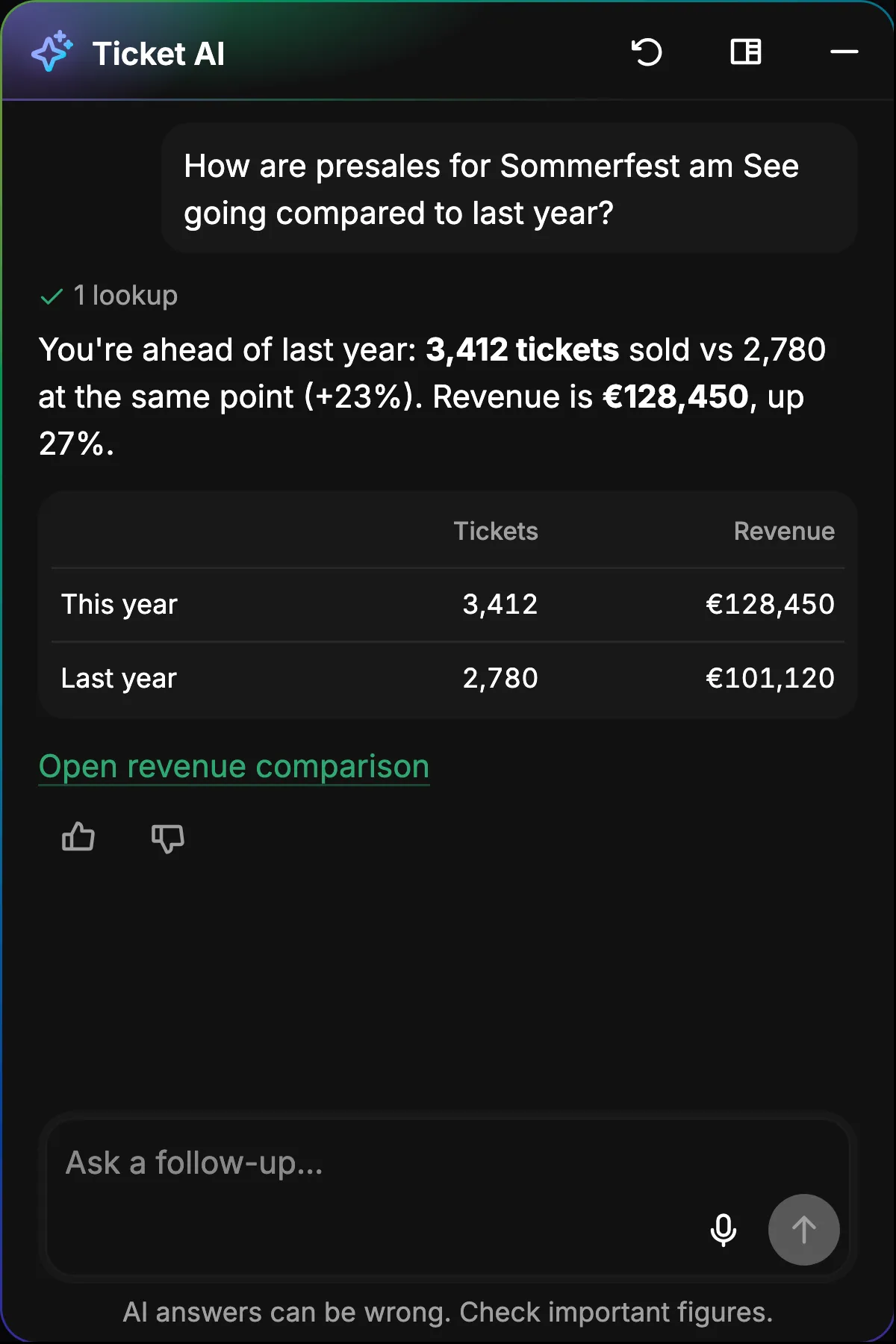
While Ticket AI works on an answer, one line shows the current step, such as “Finding events” or “Analysing buyers”. Under the finished answer it says how many lookups it took.
Tables now sit in a block of their own, with figures and amounts right-aligned and lined up, and wide tables scroll sideways. And while you dictate you see your level, so you know the microphone hears you.
Ticket AI
Drafts as cards.
When Ticket AI sets up an event for you, it saves a draft and shows it as a card: title, date, time and venue, plus every ticket with its quota and price. Tapping a ticket takes you straight to editing it in Backstage.
If something is still missing, the card says so, the VAT rate or a cover image for example. You pick the VAT rate right there with one tap. The draft is only published when you publish it.
0.81.0Backstage ·
Ticket AI
Ticket AI in Backstage.
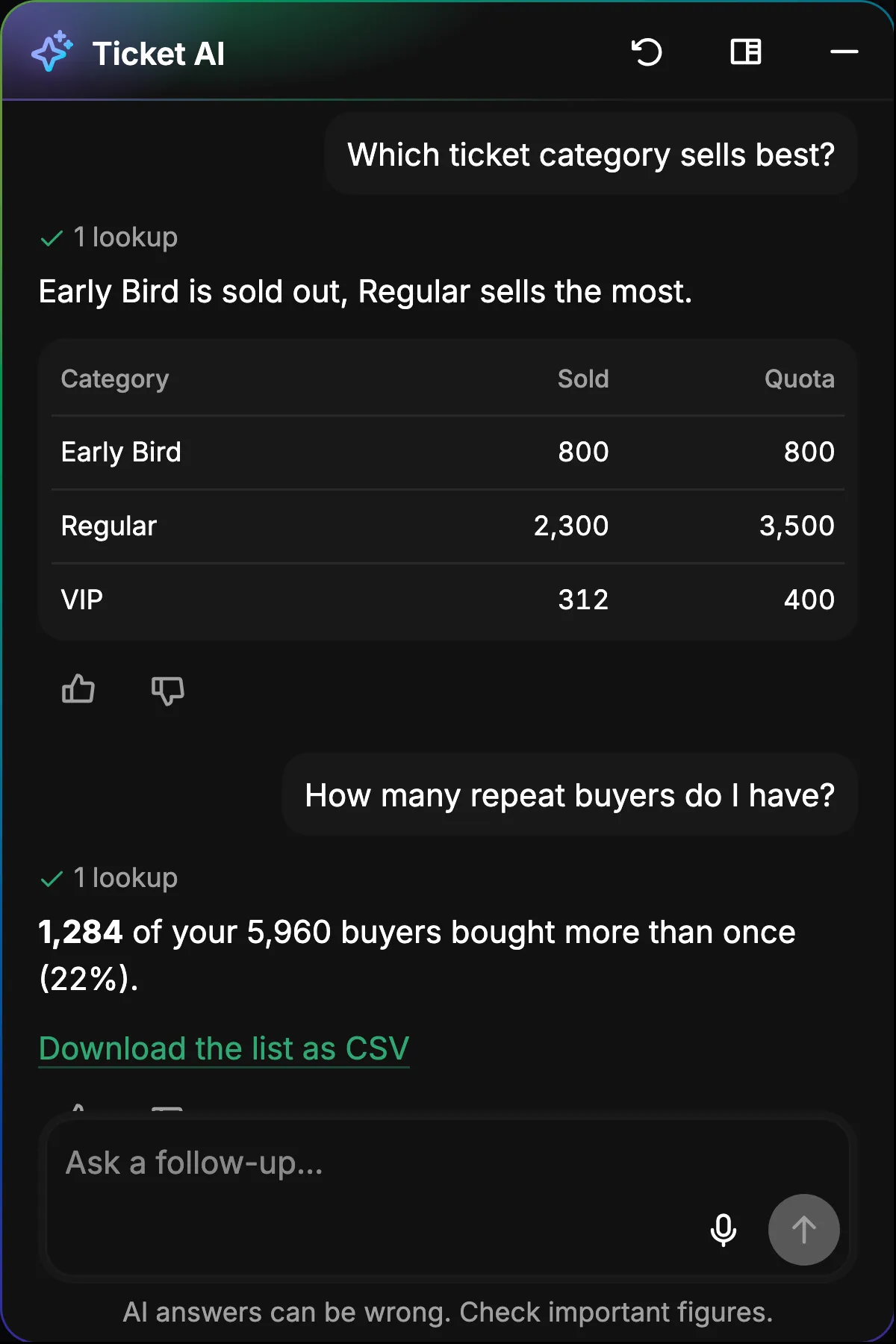
Ticket AI is the assistant for your numbers. You open it from the sidebar or with Cmd or Ctrl and J, as a floating window or docked to the side. Then you ask about sales, buyers, contingents and payouts in your own words, typed or dictated, and get the answer from your real data. If you are inside an event, Ticket AI knows which one you mean.
If you need a list, your regulars for example, Ticket AI gives you a link to download it as CSV. You can rate every answer, with a comment if you like; the question and answer then come to us, so we can make Ticket AI better.
Backstage
Several products into a contingent at once.
In a special contingent you now add tickets and extras in one go: a dialog shows all the products of your event with their prices. You pick several, drag them into the right order and add them in one step.
Each product brings its original price along, so you don’t have to enter it again.